📱Tofu MLink App for Android
Tofu MLink App
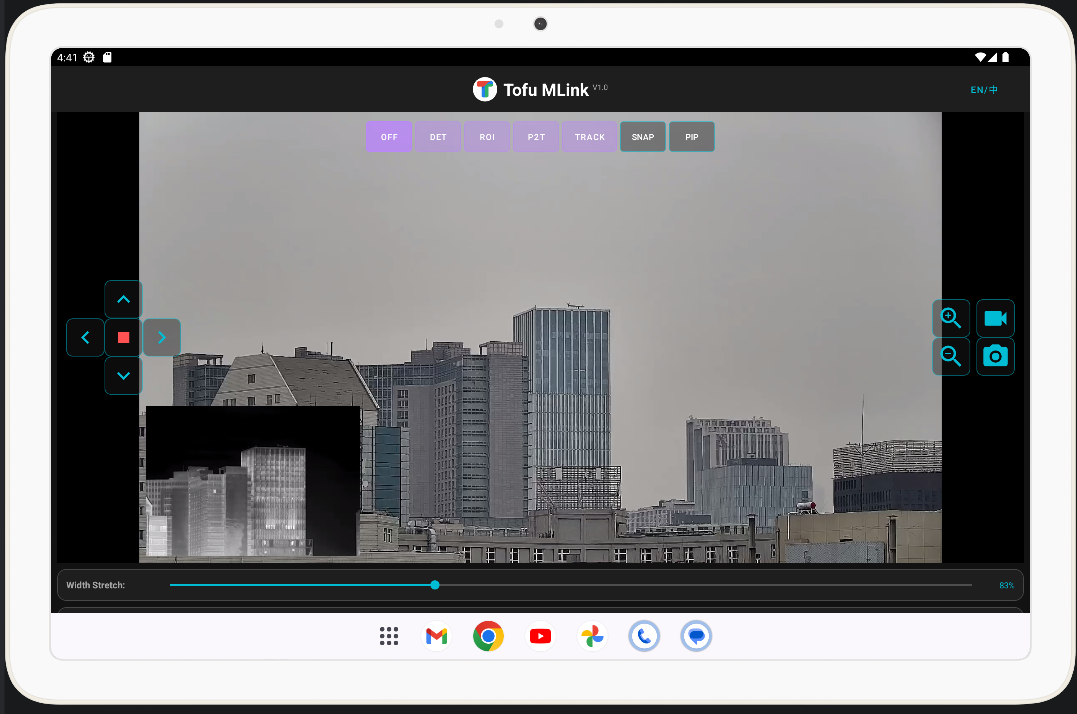
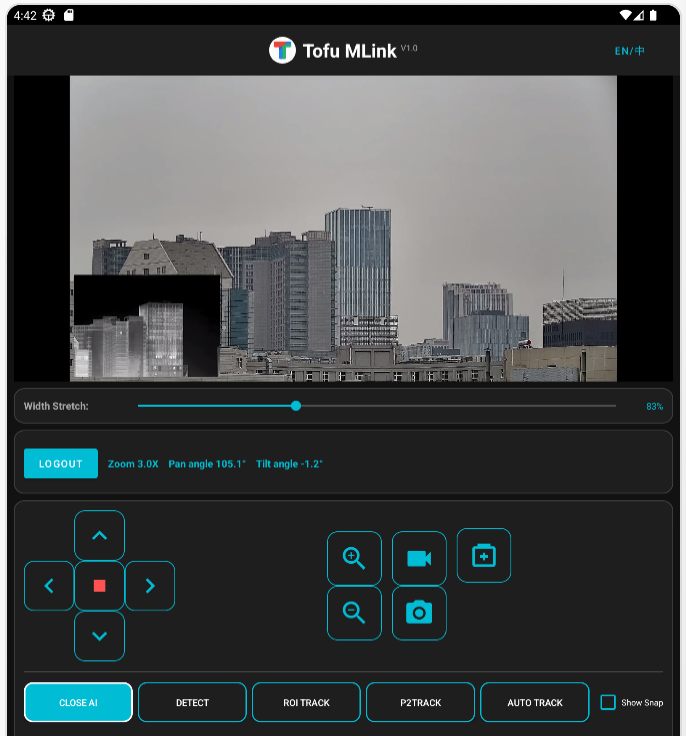
Tofu MLink is an Android control client developed for PTZ cameras. It integrates video stream preview, PTZ control, AI model switching, and real-time capture thumbnail display.
©️Copyright GPL-2.0 License (GNU General Public License v2.0).Tofu Intelligence® .
1. Features
Real-time Preview : RTSP video streaming.PTZ Control : Supports PELCO-D protocol for Pan, Tilt, and Zoom control.AI Mode Switching : Supports object detection and multiple tracking modes.Local Storage : Supports high-definition snapshots and video recording saved to local storage.Auto Reconnection : Automatically attempts to reconnect RTSP and TCP sessions if the connection is lost.Multi-language Support : Supports dynamic switching between Chinese and English.
Connection Control
Button
Function
Login/Logout Connect or disconnect TCP connection with the device
Search Devices Auto-search for Tofu devices on the local network
AI Mode Switching
Button
Function
OFF Turn off all AI functions
DET Enable AI target detection mode
ROI ROI tracking mode - draw a box on screen to track target
P2Track Point-to-track mode - tap on target to track
Track Auto tracking mode - automatically identify and track targets
PTZ Gimbal Control
Button
Function
↑ Tilt up, hold to continue, release to stop
↓ Tilt down, hold to continue, release to stop
← Pan left, hold to continue, release to stop
→ Pan right, hold to continue, release to stop
⬤ (Center)Stop all gimbal movement
Zoom+ Zoom in, hold for continuous zoom
Zoom- Zoom out, hold for continuous zoom
Speed+ Increase gimbal speed, supports long press
Speed- Decrease gimbal speed, supports long press
Button
Function
📷 Capture Take local screenshot and save to device
🔴 Record Start/Stop local recording
Display Control
Button
Function
Display Mode Select display mode (Large Visible, Large Infrared, etc.)
Algorithm Model Select AI algorithm model (Visible, Thermal, Person/Car, etc.)
Width Stretch Adjust video width ratio
Show Snap Show/Hide snapshot preview
Button
Function
PIP Picture-in-Picture toggle: Visible⇄Infrared large view cycle
Snap Toggle Show/Hide snapshot preview
Others
Button
Function
中/EN Toggle interface language (Chinese/English)
Button
Function
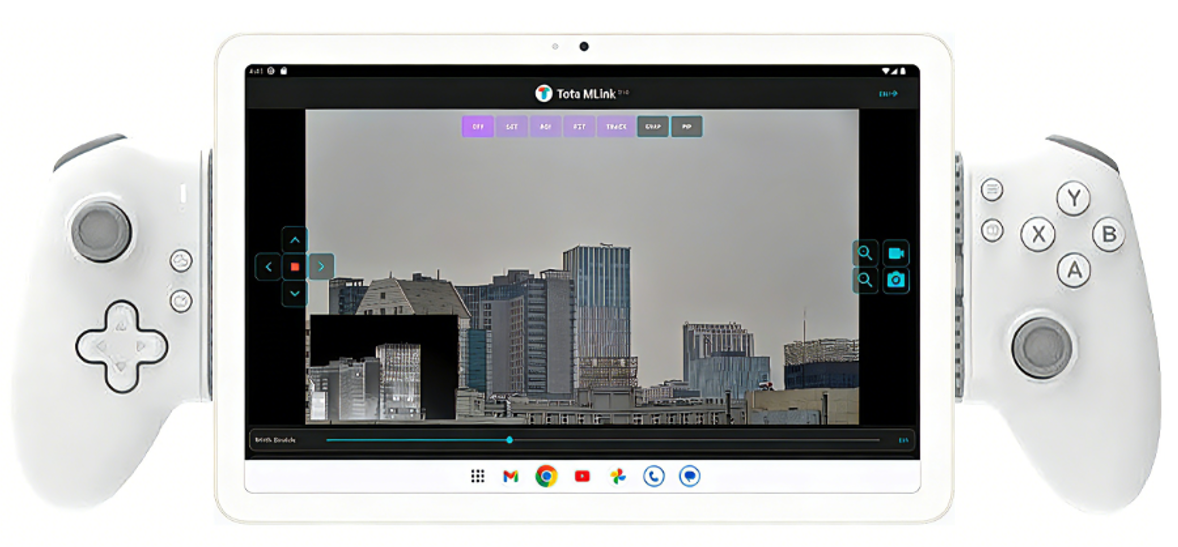
A Detection mode - Enable AI target detection
B ROI Track - ROI box tracking mode
X Auto Track - Automatic target tracking
Y P2 Track - Point-to-track mode
D-Pad (Directional Pad)
Button
Function
Up Tilt gimbal up, release to stop
Down Tilt gimbal down, release to stop
Left Pan gimbal left, release to stop
Right Pan gimbal right, release to stop
Button
Function
LB (L1) Speed Down - Decrease gimbal speed, long press for continuous
LT (L2) Speed Up - Increase gimbal speed, long press for continuous
RB (R1) Capture - Take local screenshot
RT (R2) Record - Start/Stop local recording
Analog Sticks
Stick
Direction
Function
Left Stick Up/Down/Left/Right
PTZ gimbal control, release to stop
Left Stick Press Press down
Turn off AI functions
Right Stick Push up
Zoom In, release to stop
Right Stick Push down
Zoom Out, release to stop
Right Stick Press Press down
PIP toggle (Visible⇄Infrared large view cycle)
Function Keys
Button
Function
Start Login - Connect to device (only when disconnected)
Select/Back Logout - Disconnect (only when connected)
Previous
💻SiDev Software User Manual
Last modified: 2026-07-08