
🌐BSLink Web Software
Tofu BSLink App
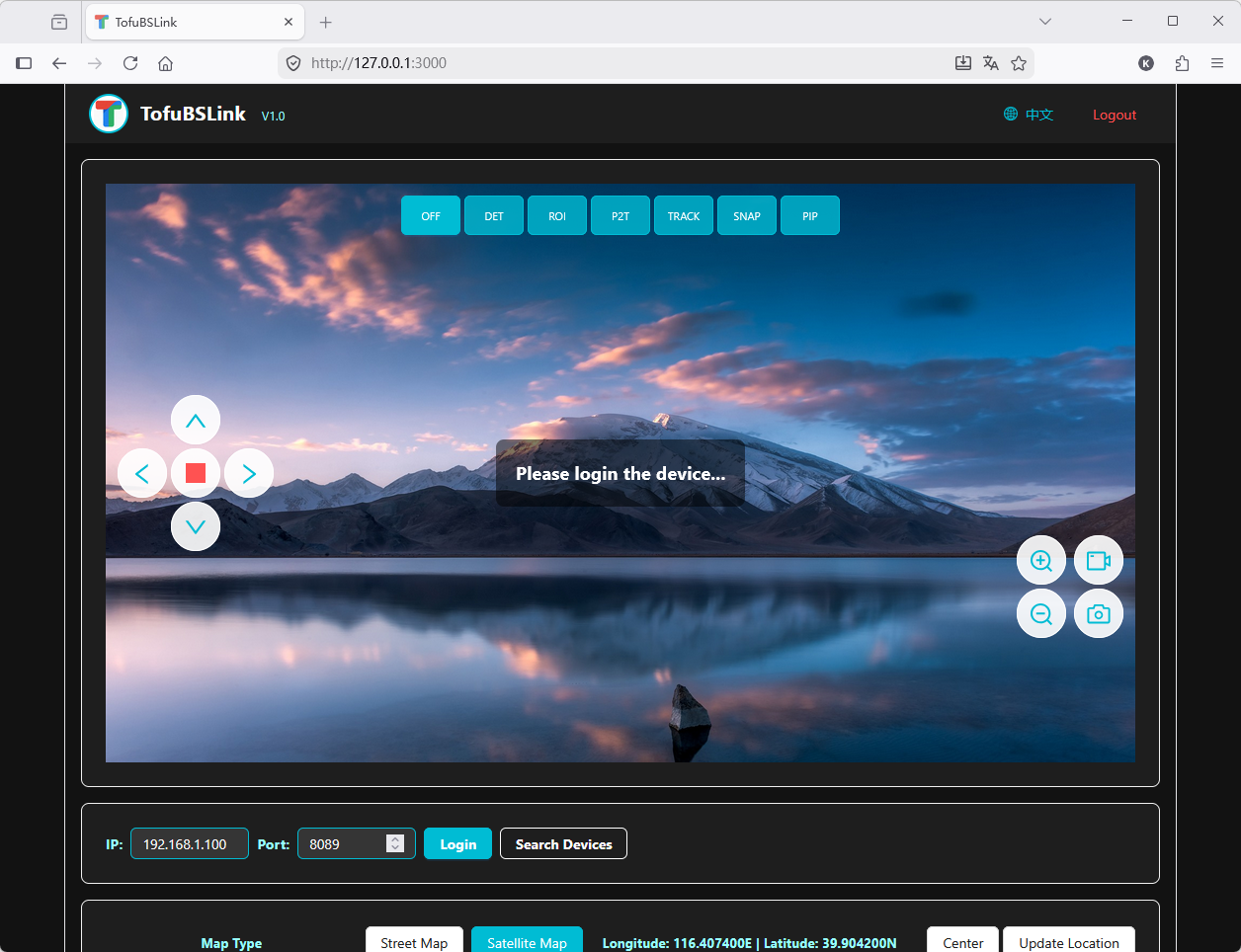
Tofu BSLink Web Management Software is a web management application developed specifically for Tofu PTZ cameras. It integrates video stream preview and storage, PTZ and lens control, multi-mode tracking, picture-in-picture switching, real-time snapshot thumbnail display, and other functions.

©️Copyright
All copyrights of this software are owned by Tofu Intelligence®, which provides continuous development and maintenance.
The trial program is an exe package for the Windows operating environment. Part of the source code based on JavaScript interfaces is open‑sourced and available for secondary development.
Please contact sales if you require the complete software or application-level source code.
1. Software Overview
TofuBSLink2 is a professional video surveillance and PTZ control software designed for scenarios requiring real-time monitoring, remote control, and intelligent analysis. The software integrates advanced mapping functions, video stream processing, and AI analysis capabilities to provide users with a comprehensive monitoring solution.
2. Core Functions
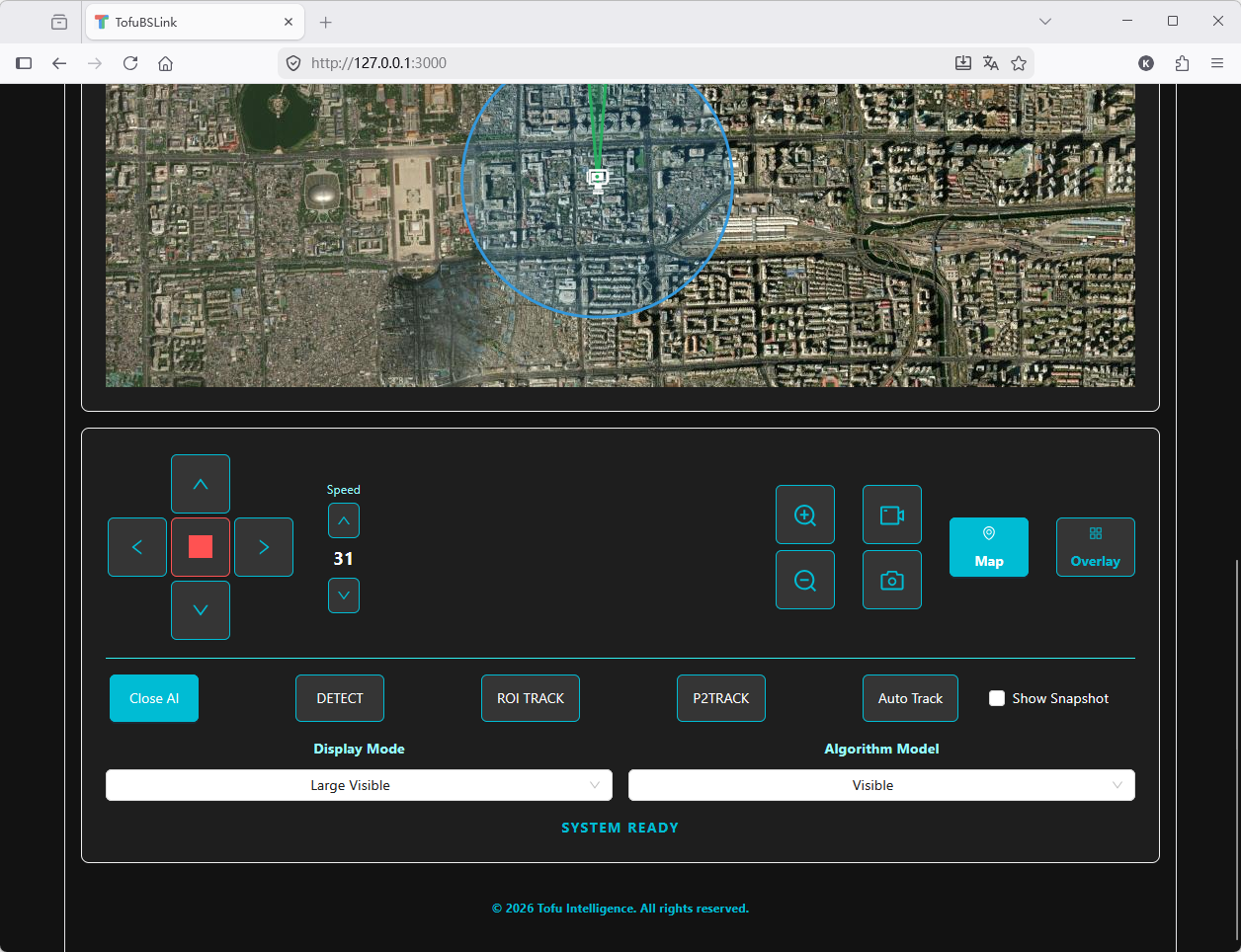
2.1 Map Integration
Dual map modes: Supports street maps and satellite maps
Location marking: Marks monitoring device positions with custom PTZ camera icons
Range visualization: Displays PTZ camera search range and current viewing area
Location update: Supports updating device position by clicking the map for quick positioning
2.2 Video Surveillance
Real-time video stream: Supports transmission and display of high-definition video streams
Video preview: Displays placeholder images and prompts when no device is connected
Video control: Supports stretching video width while maintaining correct aspect ratio
Snapshot function: Supports local photo capture and saving as image files
Recording function: Supports video recording
2.3 PTZ Control
Direction control: Supports PTZ movement in up, down, left, and right directions
Speed adjustment: Adjustable PTZ movement speed (levels 1–63)
Zoom control: Supports lens zoom operations
Real-time status: Displays current PTZ angles (Pan/Tilt) and zoom magnification
2.4 AI Intelligent Analysis
Multiple AI modes: Supports object detection, box selection tracking, point selection tracking, and auto-tracking
Algorithm models: Supports visible light, thermal imaging, human/vehicle detection, vessel, drone, and bird detection
Display modes: Supports large-view visible light, thermal imaging, visible light, fusion, and large-view thermal imaging modes
Snapshot function: Supports object capture and preview
2.5 Device Management
Device search: Automatically searches for monitoring devices on the network
Device connection: Supports connecting devices via IP address and port
Status monitoring: Displays device connection status and system status
2.6 User Interface
Multi-language support: Supports Chinese and English interface switching
Responsive design: Adapts to different screen sizes
Easy operation: Intuitive control interface and operation flow
Status feedback: Displays real-time operation status and system information
3. Technical Features
3.1 Mapping Technology
Real-time positioning: Supports updating device position by map clicks
Geographic visualization: Intuitively displays monitoring ranges with circles and sectors
3.2 Video Processing
Adaptive aspect ratio: Maintains correct video aspect ratio
Smooth display: Optimized video stream processing for smooth playback
Local processing: Supports local snapshot and recording functions
3.3 System Architecture
Frontend-backend separation: Adopts a modern frontend-backend separated architecture
WebSocket communication: Uses WebSocket for real-time data transmission
RESTful API: Provides standardized API interfaces
4. System Requirements
4.1 Frontend Requirements
Browser: Supports modern browsers including Chrome, Firefox, Safari, and Edge
Network: Stable network connection
Resolution: Recommended 1920×1080 or higher
4.2 Backend Requirements
Server: Supports Node.js environment
Network: Supports WebSocket communication
Storage: Sufficient storage space for video recordings and snapshots
5. Quick Start
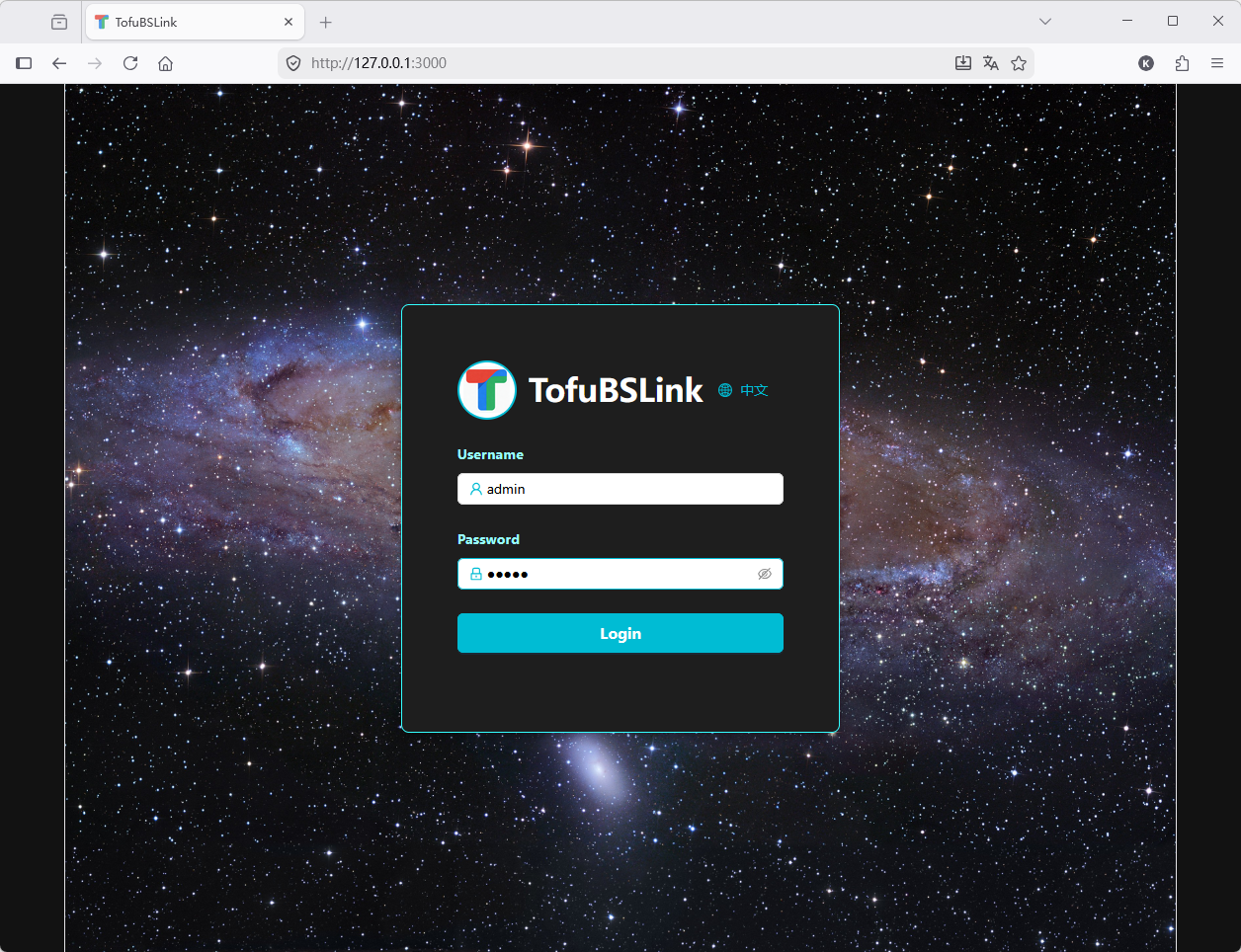
5.1 Log In to the System
Open a browser and visit the application address
Enter username and password
Click the login button to enter the main interface
5.2 Connect a Device
Enter the device IP address and port on the main interface
Click the "Login" button to connect the device
After successful connection, the video area will display the real-time video stream
5.3 Control the PTZ
Use direction control buttons to adjust PTZ orientation
Use speed control to adjust PTZ movement speed
Use zoom buttons to adjust lens focal length
5.4 Use Map Functions
Click the "Map" button to show the map area
Select "Street Map" or "Satellite Map" mode
Click the "Update Location" button, then click a new position on the map
Map markers, circles, and sectors will automatically update to the new position
5.5 Enable AI Functions
Click the "Overlay" button to show the AI control panel
Select the desired AI mode (object detection, box selection tracking, etc.)
Adjust algorithm models and display modes as needed
6. Application Scenarios
Security surveillance: Security monitoring in shopping malls, residential areas, factories, etc.
Traffic management: Traffic monitoring and management on roads and in parking lots
Environmental monitoring: Environmental monitoring in parks and scenic areas
Industrial monitoring: Production and safety monitoring in factories and warehouses
Remote inspection: Remote inspection of hard-to-reach areas
7. Key Advantages
Map linkage: PTZ cameras can be controlled in linkage with maps
Multiple map modes: Supports both street and satellite maps to meet different scenario needs
Intelligent analysis: Integrates multiple AI analysis functions to improve monitoring efficiency
Intuitive control: Simple and intuitive user interface to reduce operation difficulty
Real-time feedback: Displays real-time device status and operation results
Cross-platform: Supports multiple browsers without client installation
